Google Pub/Sub Integration
Connect Fleak to Google Cloud Pub/Sub using a service account or OAuth token to pull from subscriptions and publish to topics in your workflows.
Google Cloud Pub/Sub is a fully managed, real-time messaging service that allows you to send and receive messages between independent applications. The Pub/Sub integration in Fleak stores your GCP credentials so that Pub/Sub source and sink nodes can authenticate without requiring credentials to be set per-node.
Setting Up Pub/Sub Integration
Navigate to Integrations
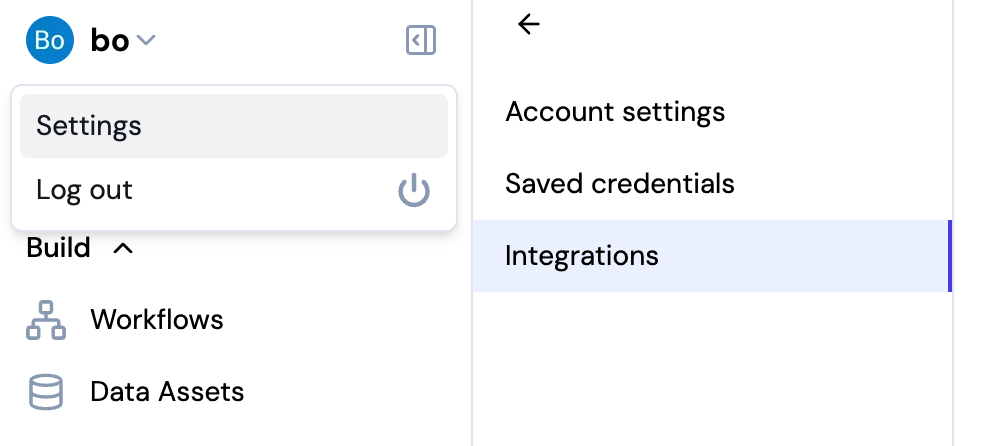
- Click on your username in the top left corner of the Fleak dashboard
- Select Settings from the dropdown menu
- Click on Integrations in the settings sidebar
Add Pub/Sub Integration
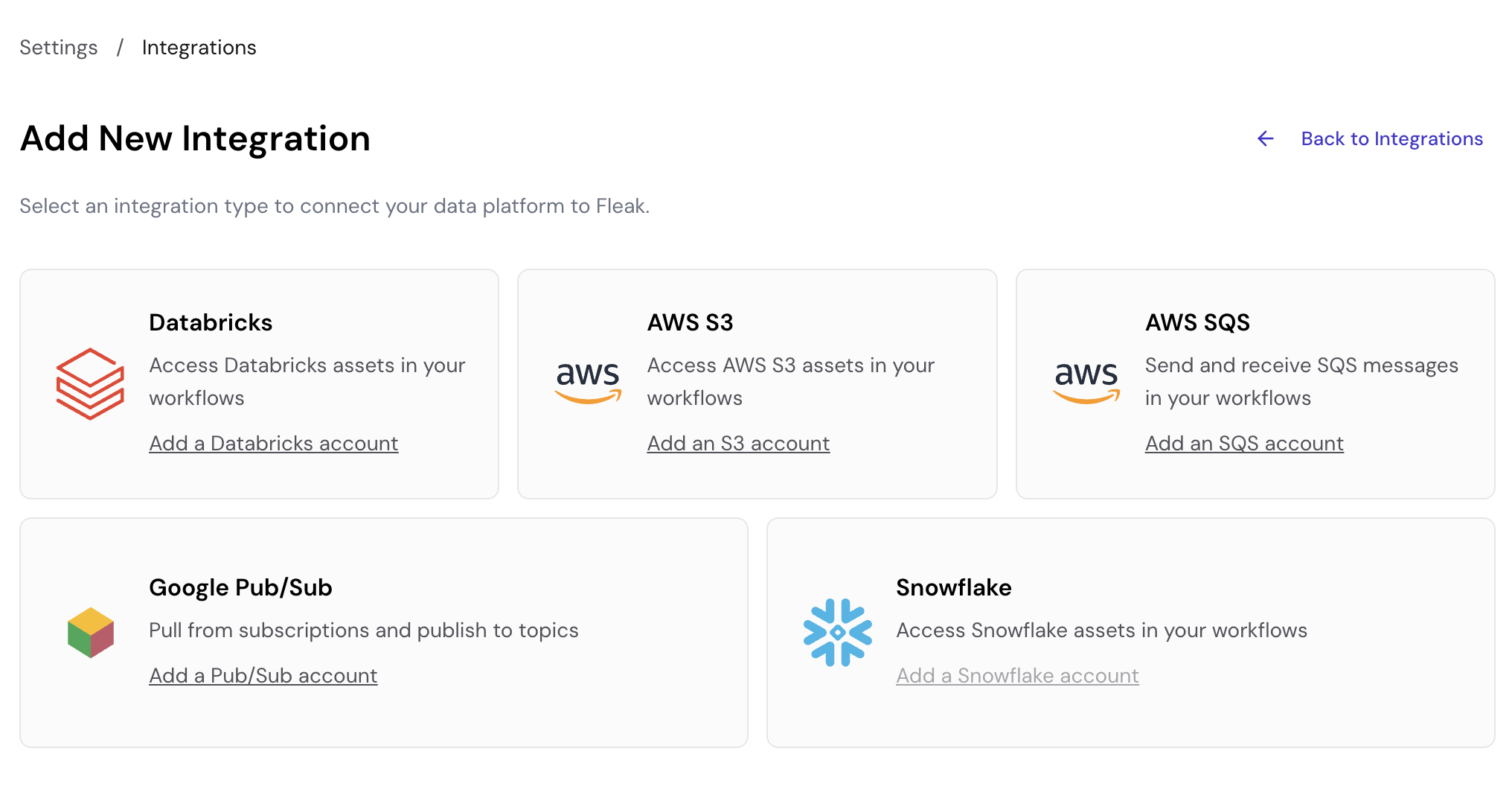
On the Integrations page, click Add New Integration, then select Add a Pub/Sub account.
Configure Connection Details
Fill in the following fields:
- Connection Name: A descriptive name for your connection (e.g., "My Pub/Sub Integration")
- Authentication Type: Choose how Fleak authenticates with GCP:
- Service Account JSON keyfile — paste the full JSON key file downloaded from the GCP console. Recommended for production use because service account credentials do not expire.
- OAuth access token — provide a short-lived OAuth 2.0 token (e.g., from
gcloud auth print-access-token). Suitable for testing; tokens typically expire after one hour.
- GCP Project ID: Your GCP project ID (e.g.,
my-project-id). Required — Fleak uses it to validate the credentials on save and to resolve topics and subscriptions. - Service Account JSON (when using JSON keyfile auth): Paste the entire contents of the JSON key file for your service account.
- OAuth Access Token (when using OAuth access token auth): Paste a valid access token.
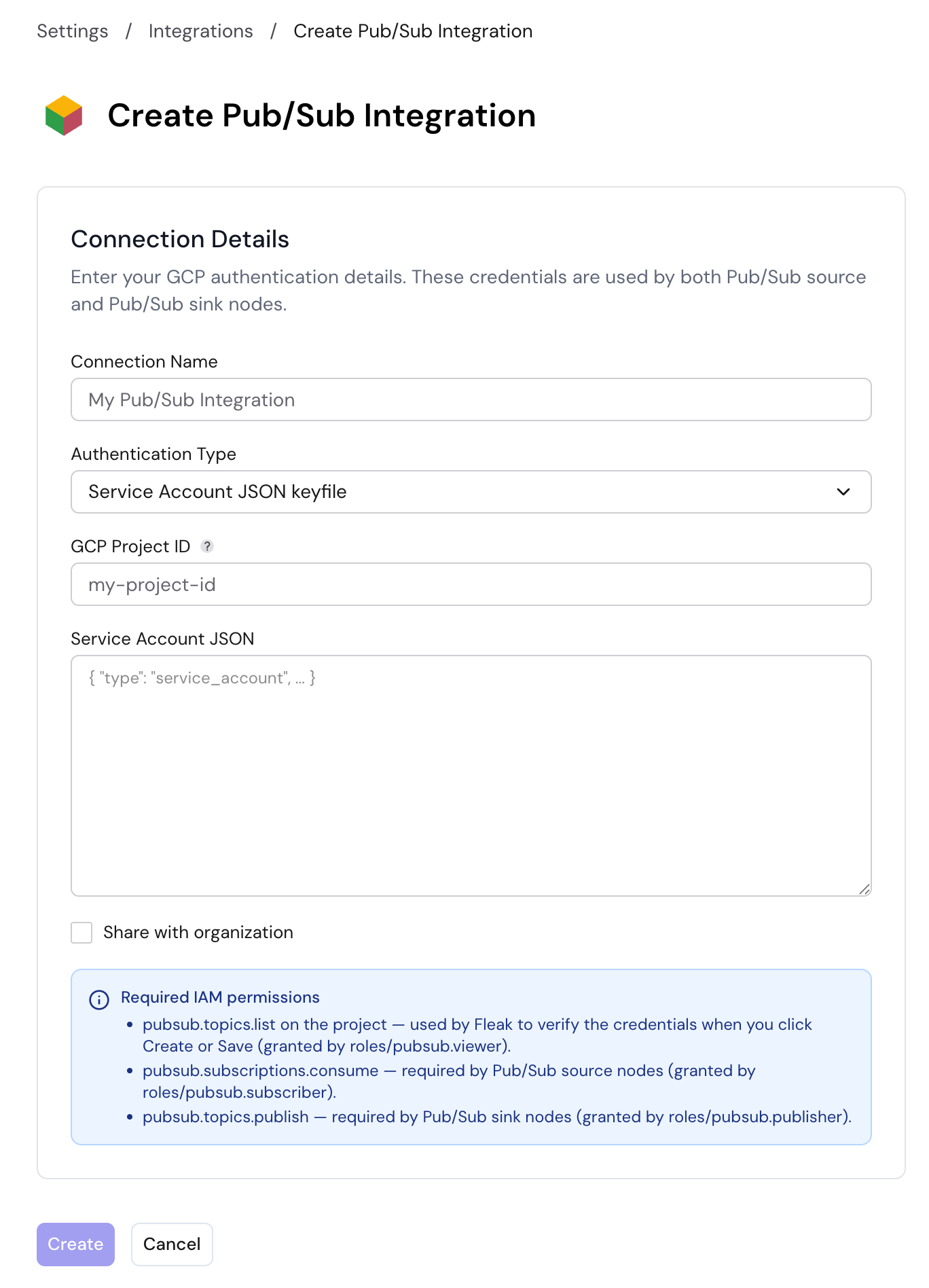
Click Create to save the integration. Fleak validates the credentials by checking that pubsub.topics.list is accessible before saving.
Enable Share with organization to make this integration available to other members of your organization. Leave it unchecked to keep the integration private to your account.
If you are editing an existing integration, leave the credential fields blank to keep the saved values unchanged.
Required IAM Permissions
The service account or token must have the following GCP IAM permissions granted:
| Permission | Purpose | Predefined Role |
|---|---|---|
pubsub.topics.list | Used by Fleak to verify credentials on save | roles/pubsub.viewer |
pubsub.subscriptions.consume | Required by Pub/Sub source nodes to pull messages | roles/pubsub.subscriber |
pubsub.topics.publish | Required by Pub/Sub sink nodes to publish messages | roles/pubsub.publisher |
Using Pub/Sub in Workflows
Once a Pub/Sub integration is saved, it appears in the Google Pub/Sub Integration dropdown on both the Pub/Sub Source and Pub/Sub Sink nodes. Select it there — the node then uses the stored project ID and credentials automatically.
- Pub/Sub Source Node — Pull messages from a Pub/Sub subscription into your workflow
- Pub/Sub Sink Node — Publish processed records from your workflow to a Pub/Sub topic