S3 Integration
Connect Fleak to AWS S3 using access keys to enable Delta Table and Cloud Storage Folder data assets in your workflows.
The S3 integration connects Fleak to your AWS S3 storage, enabling workflows to write data as Delta Tables or to Cloud Storage Folders. Once configured, you can create data assets that reference your S3 buckets.
Setting Up S3 Integration
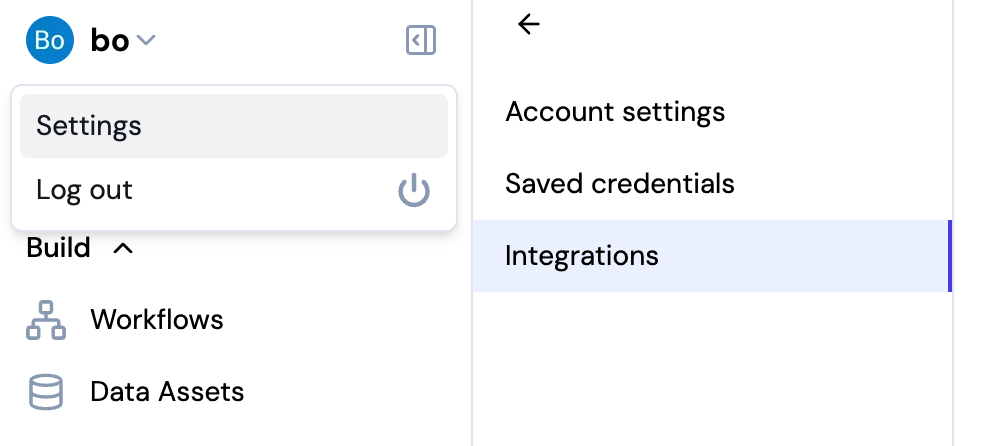
Navigate to Integrations
- Click on your username in the top left corner of the Fleak dashboard
- Select Settings from the dropdown menu
- Click on Integrations in the settings sidebar
Add S3 Integration
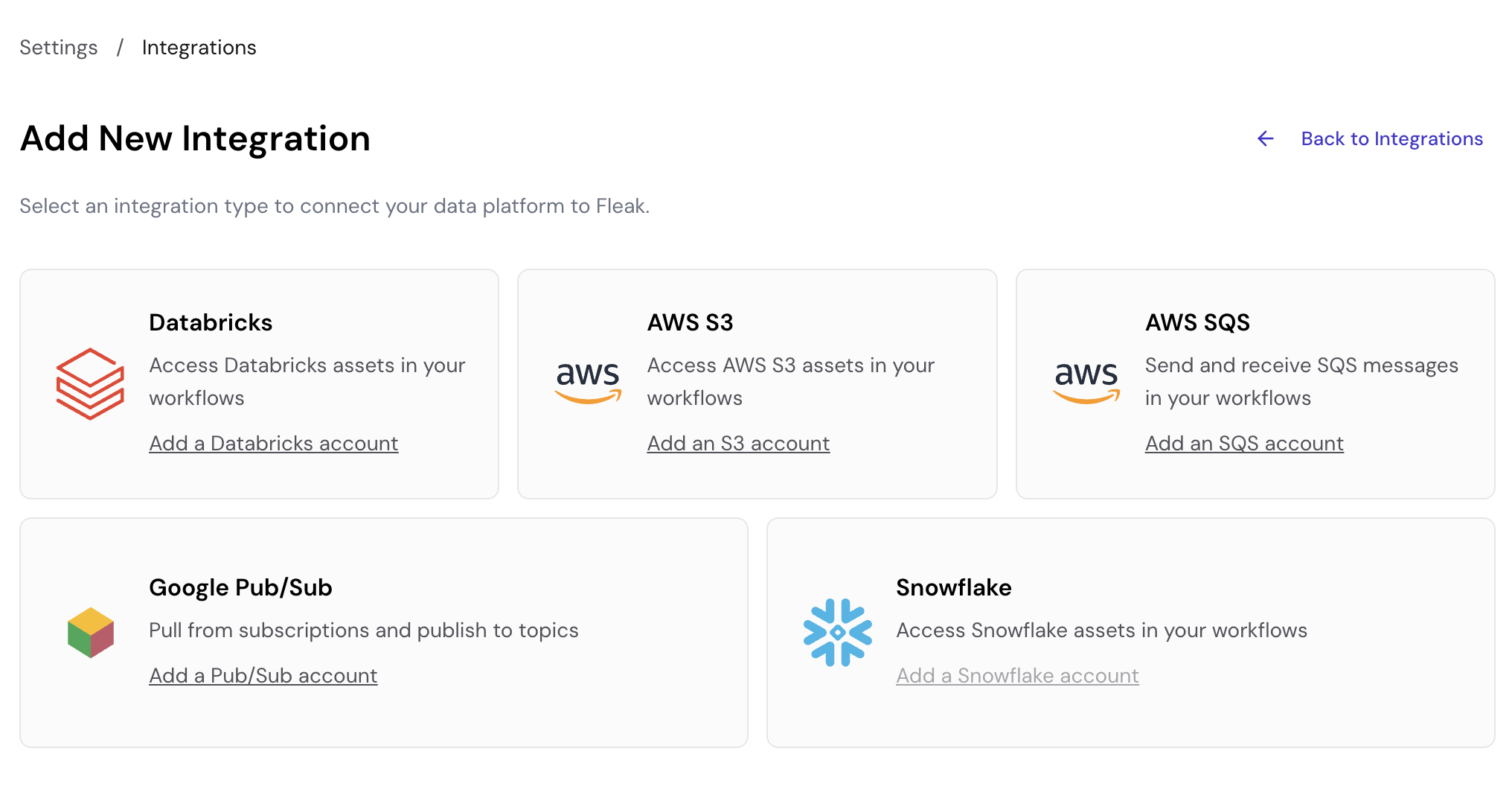
On the Integrations page, click Add New Integration, then select Add an S3 account.
Configure Connection Details
Fill in the following fields:
- Connection Name: A descriptive name for your connection (e.g., "My S3 Integration")
- AWS Access Key ID: Your IAM user's access key ID
- AWS Secret Access Key: Your IAM user's secret access key
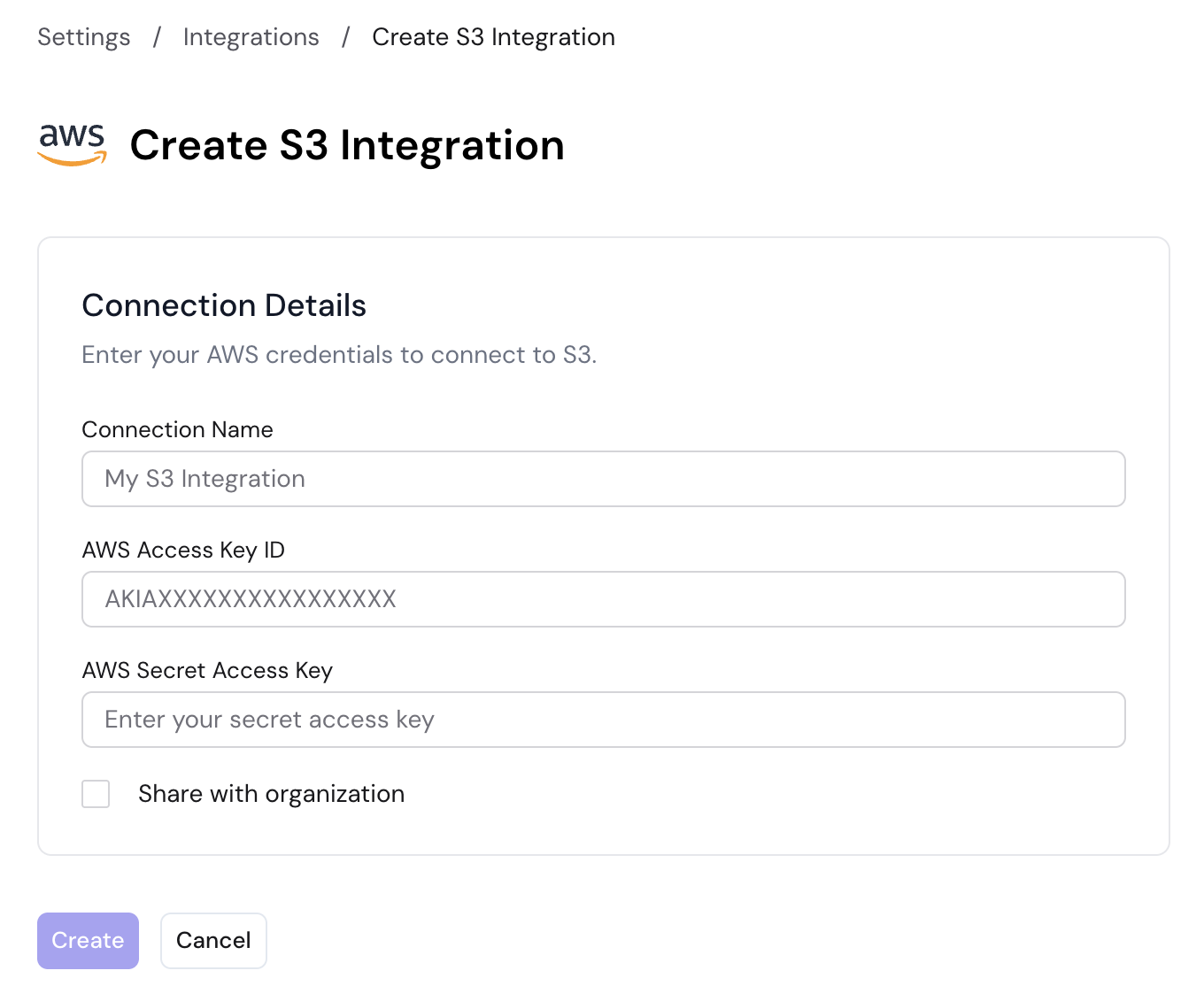
Click Create to save the integration.
Enable Share with organization to make this integration available to other members of your organization. Leave it unchecked to keep the integration private to your account.
The IAM user must have sufficient S3 permissions (e.g., s3:GetObject, s3:PutObject, s3:ListBucket) on the target buckets. For Delta Table data assets, s3:DeleteObject is also required.
Next Steps
After creating an S3 integration, you can create data assets that use it:
- Delta Table — Write data in Delta Lake format to S3
- Cloud Storage Folder — Write data as CSV, JSON, or Parquet to an S3 folder