Data Assets
Data Assets centralize configuration of remote storage locations, allowing workflows to reference pre-configured Delta Tables, Databricks Unity Catalog Tables, or Cloud Storage Folders instead of manual path entry.
Overview
Data assets are pointers to remote data storage locations that workflows use to write to. Rather than configuring storage paths directly in each node, you create data assets once and reference them across multiple workflows. This centralizes storage configuration and simplifies credential management.
All data asset types require an Integration to be set up first:
- S3 Integration — required for Delta Tables and Cloud Storage Folders
- Databricks Integration — required for Databricks Unity Catalog Tables
Supported Data Asset Types
Delta Table
Delta tables stored on S3 in Delta Lake format. Use this type when you want to write data in Delta Lake format to your own S3 buckets without going through a data platform like Databricks.
Requires an S3 Integration and uses s3a:// paths.
Databricks Unity Catalog Table
Tables managed through Databricks Unity Catalog. Use this type when you want Databricks to handle storage, governance, and metadata management. Requires a configured Databricks Integration.
Cloud Storage Folder
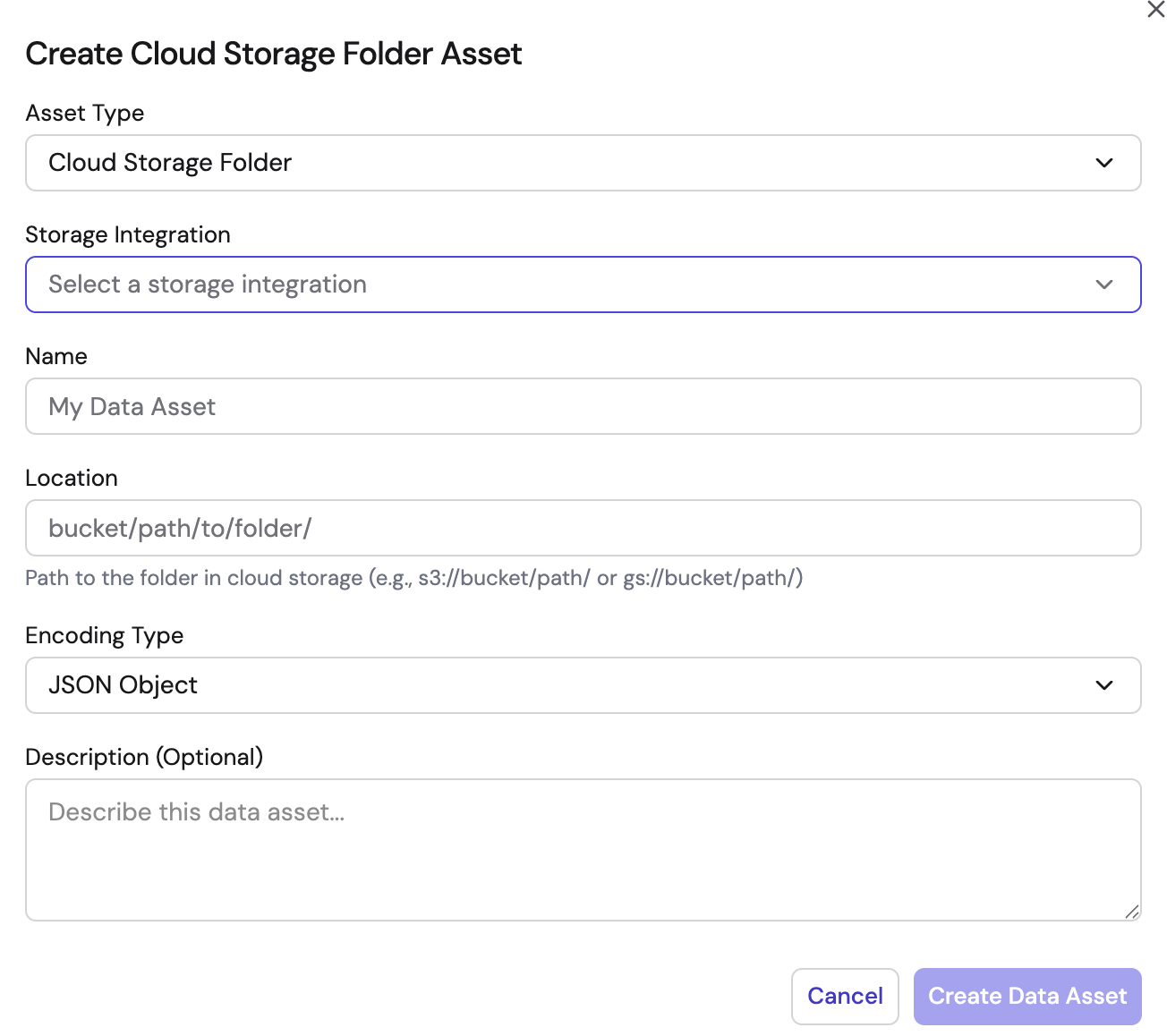
A folder in cloud storage (S3, Azure Blob Storage, GCS) used for writing data in a specified encoding format. Use this type when you want to write data as CSV, JSON, or Parquet to a cloud storage folder.
Requires a storage integration, an encoding type, and an Avro schema when using Parquet encoding.
Managing Data Assets
Accessing Data Assets
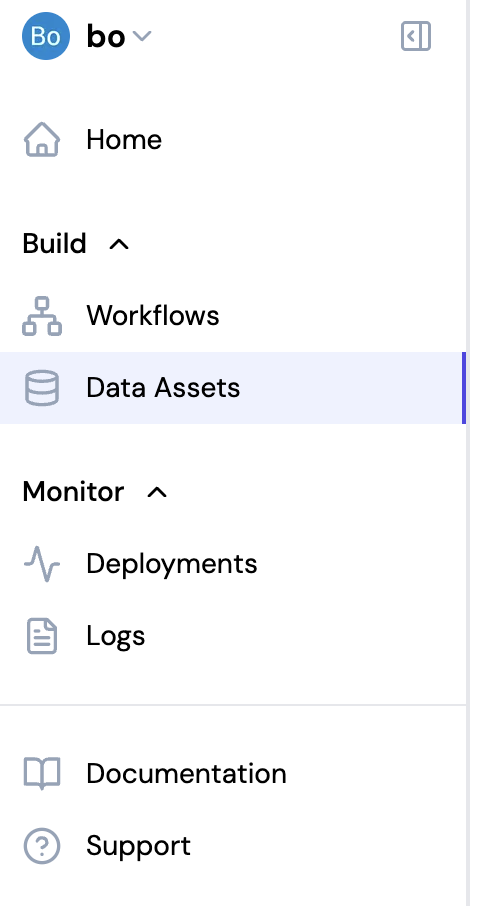
Navigate to Data Assets in the left sidebar to view and manage your data assets.
Creating Data Assets
Click Create Data Asset in the top right, then select the asset type. The creation form varies by type.
Delta Table
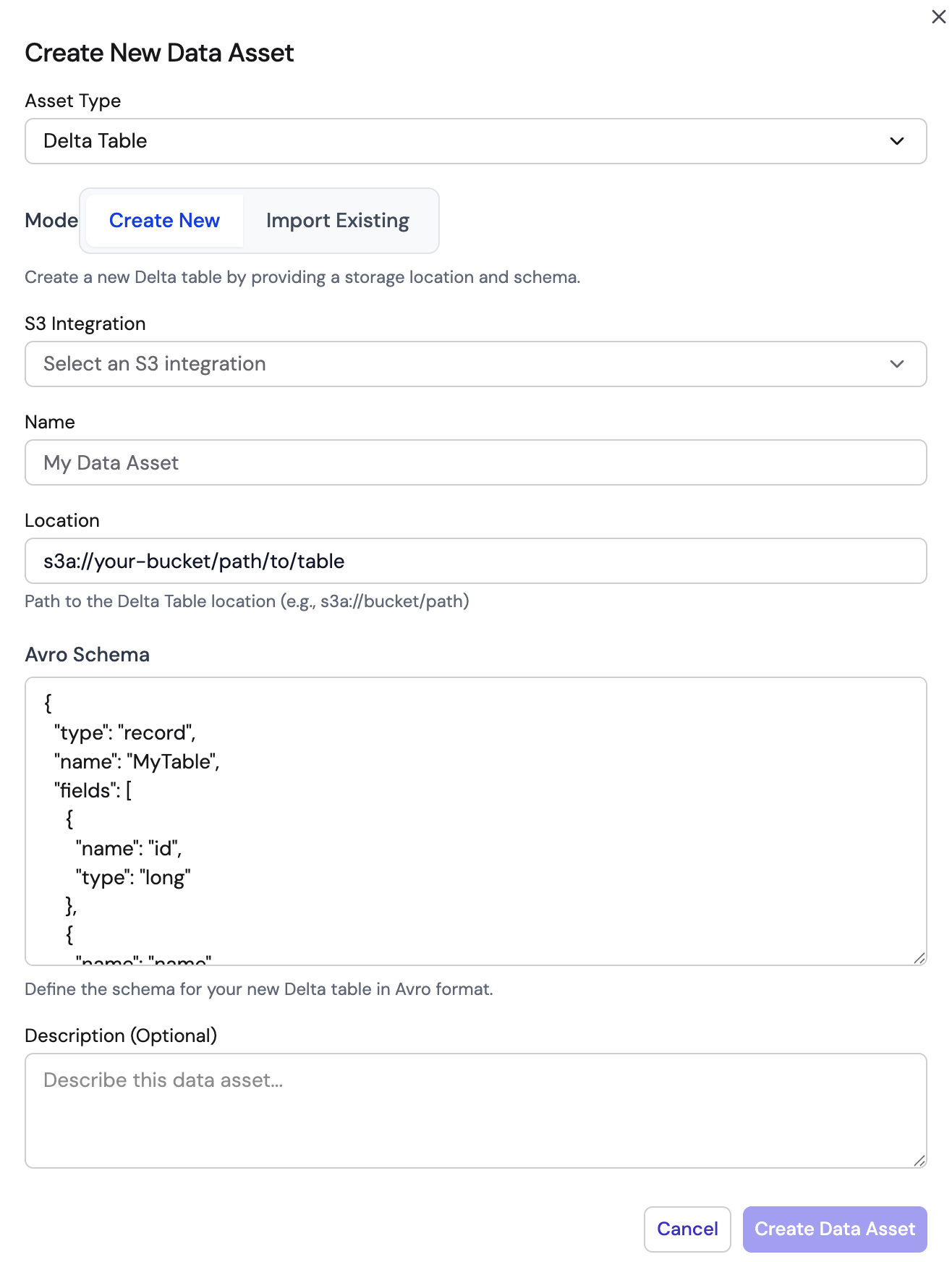
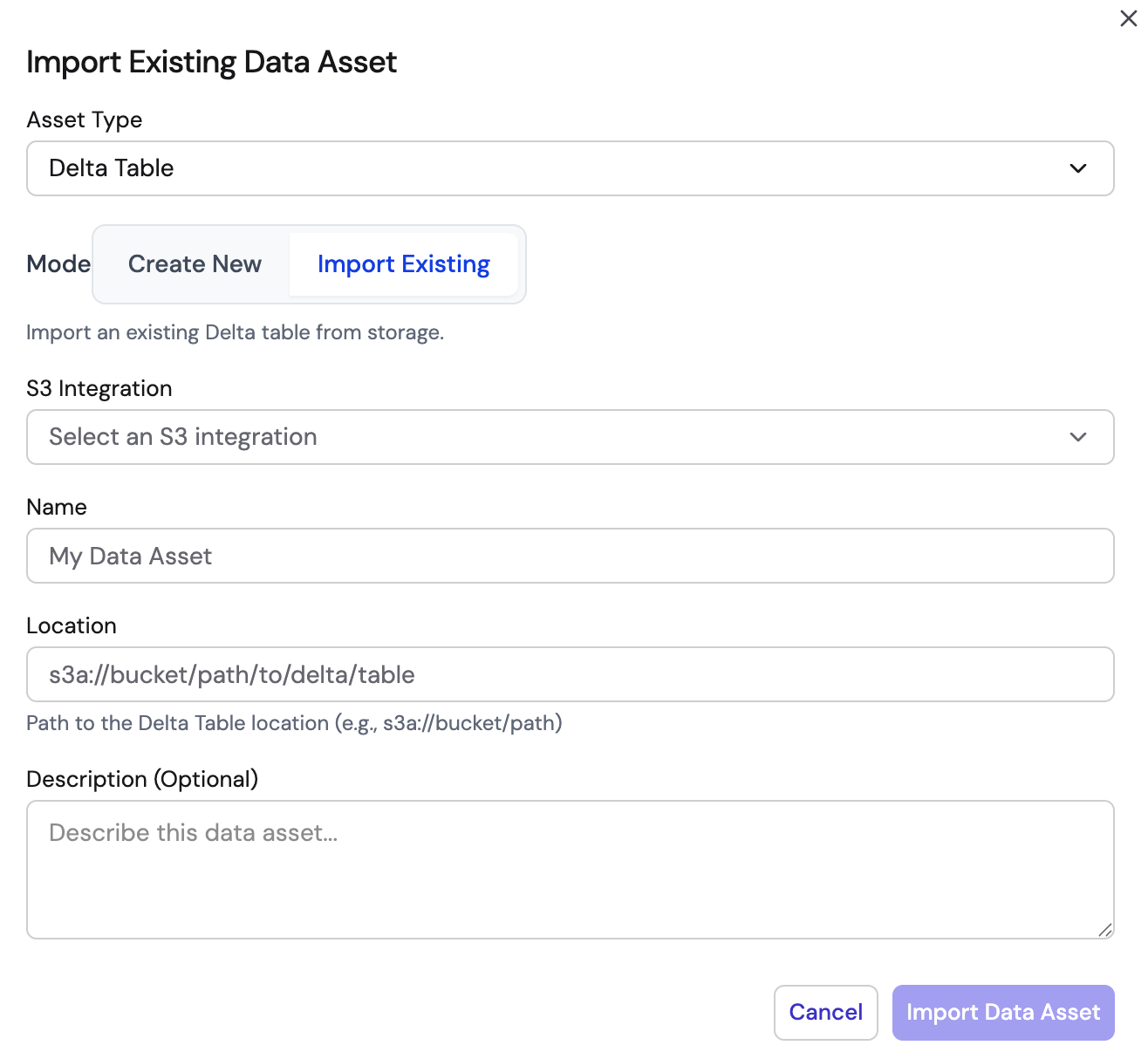
Delta Tables support two modes:
Create New — Provide an S3 integration, name, S3 path (s3a://), and Avro schema to define the table structure.
Import Existing — Provide an S3 integration and the S3 path to an existing Delta table. The schema is auto-detected.
Databricks Unity Catalog Table
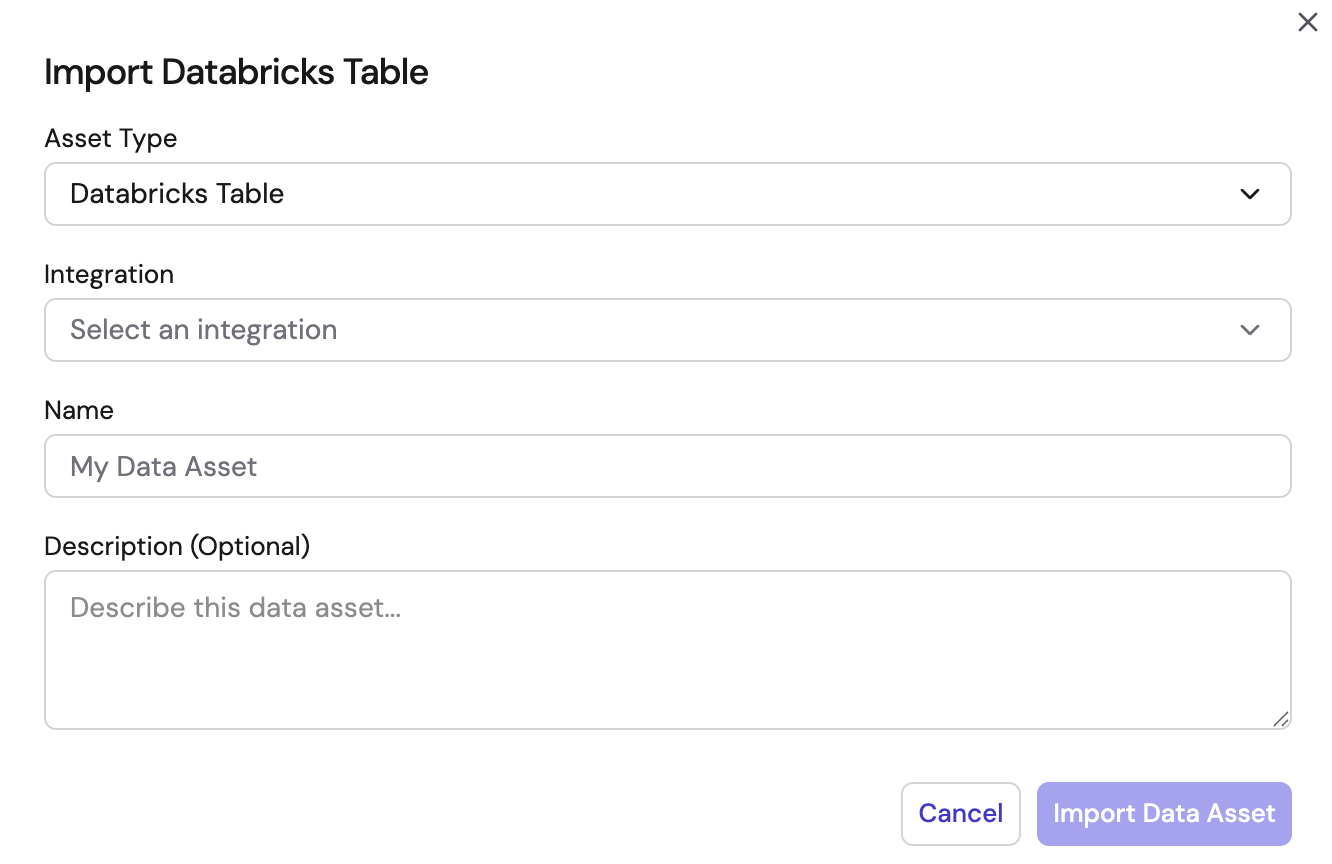
Select a Databricks integration, then provide a name and optional description. Tables are imported from your Unity Catalog.
Cloud Storage Folder
Select a storage integration, then provide a name, folder path, encoding type (CSV, JSON, or Parquet), and optional description.
Data Asset Operations
From the Data Assets page, you can:
- View all existing data assets with their type and storage location
- Edit asset name and description
- Delete assets that are no longer needed
- Filter by asset type using the dropdown
Using Data Assets in Workflows
Reference data assets in sink nodes to write processed data to storage:
- Delta Sink Node — Select a Delta Table asset to write data in Delta Lake format
- Databricks Sink Node — Select a Databricks Table asset to load data into Unity Catalog
- S3 Sink Node — Select a Cloud Storage Folder asset to write data to cloud storage
When configuring a sink node, select from your saved data assets instead of manually entering storage paths.