Databricks Integration
Connect Fleak to Databricks using OAuth M2M credentials to access Unity Catalog tables in your workflows.
Databricks is a unified analytics platform that provides collaborative data engineering and data science capabilities. The Databricks integration in Fleak allows users to connect to their Databricks workspace and write processed data from workflows into Unity Catalog tables using the Databricks Sink node.
Setting Up Databricks Integration
Navigate to Integrations
- Click on your username in the top left corner of the Fleak dashboard
- Select Settings from the dropdown menu
- Click on Integrations in the settings sidebar
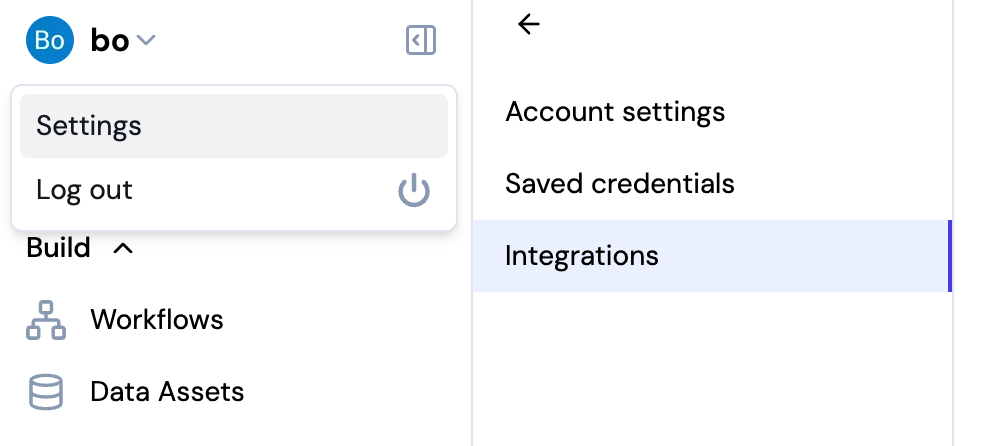
Add Databricks Integration
On the Integrations page, click Add New Integration to see available integration types. Select Add a Databricks account to create a new Databricks integration.
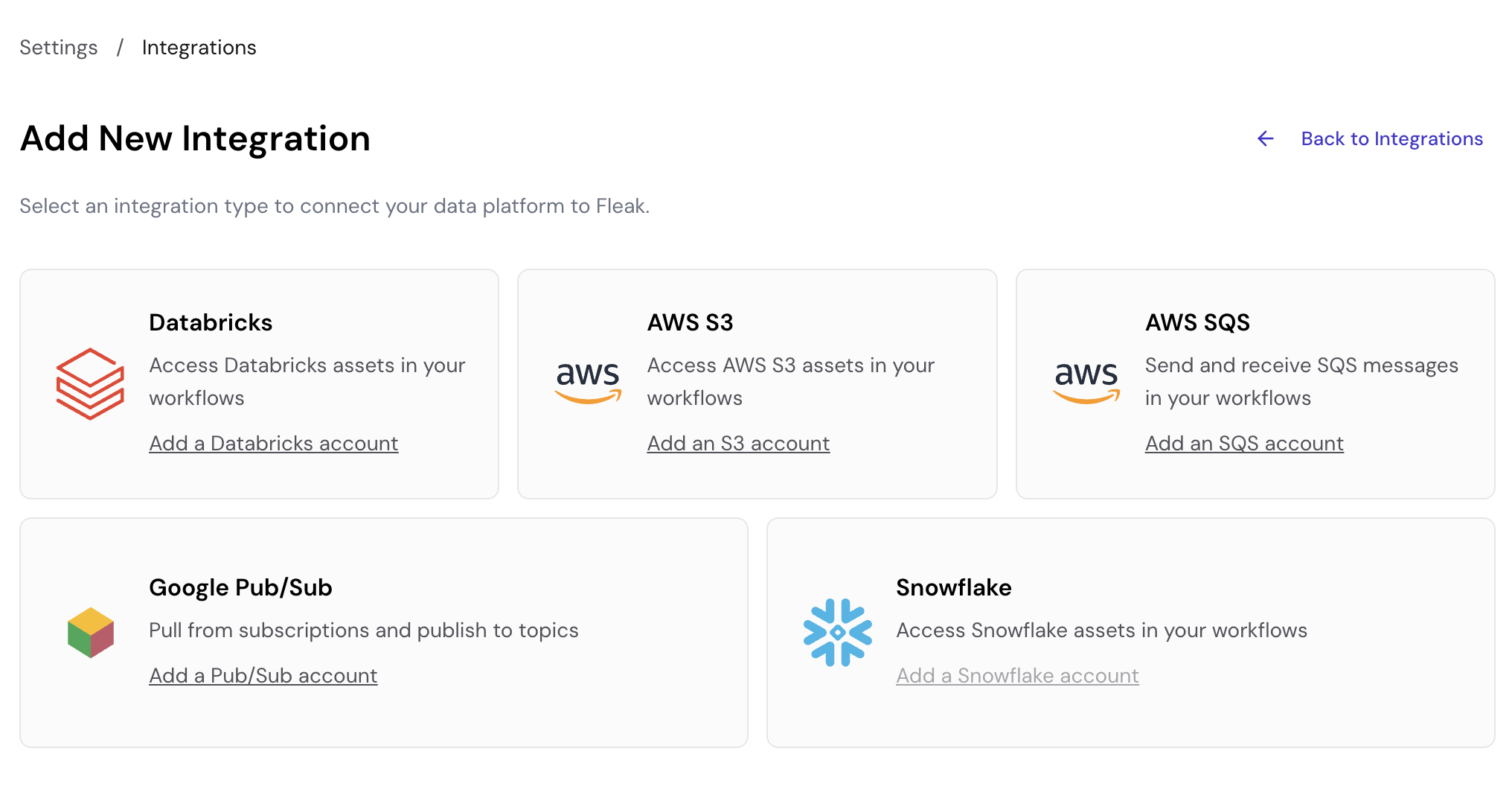
Snowflake integration is coming soon and is not yet available for configuration.
Configure Connection Details
Fill in the following connection details:
- Connection Name: A descriptive name for your connection (e.g., "My Databricks Connection")
- Host URL: Your Databricks workspace URL (e.g.,
https://xxx.cloud.databricks.com) - Client ID: The OAuth Client ID from your Databricks Service Principal
- Client Secret: The OAuth Client Secret from your Databricks Service Principal
These are OAuth M2M (Machine-to-Machine) credentials from your Databricks Service Principal, ensuring secure, auto-refreshing authentication for 24/7 pipeline stability.
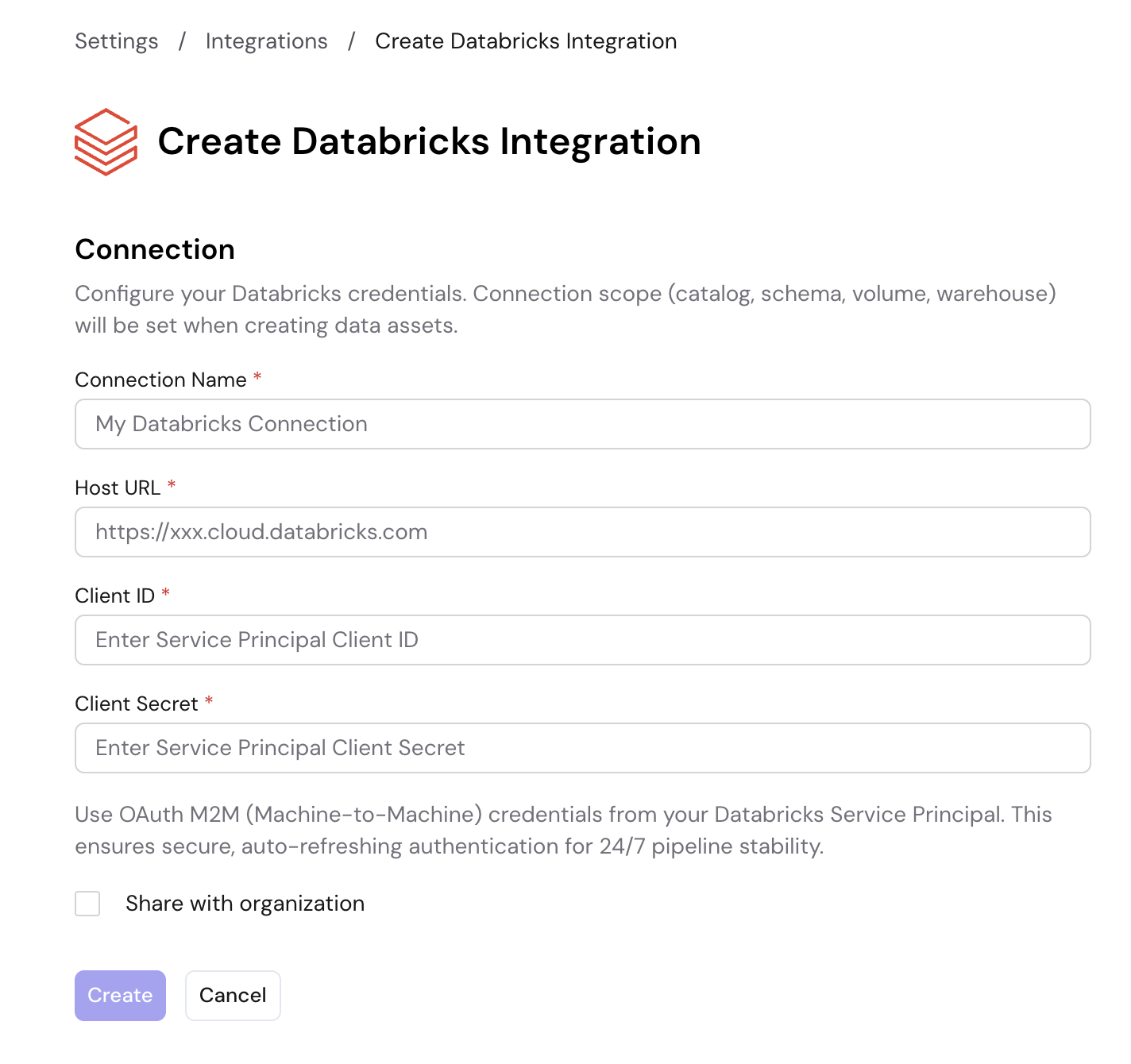
Click Create to save the integration.
Enable Share with organization to make this integration available to other members of your organization. Leave it unchecked to keep the integration private to your account.
Connection scope (catalog, schema, volume, warehouse) is configured when creating data assets, not during integration setup.
Using Databricks in Workflows
Once connected, Fleak will be able to see all the tables in Unity Catalog. You can use the Databricks Sink node in your workflows to write data into those tables.
The service principal credentials must have appropriate permissions to read catalog metadata and write to the target tables.
For more information about configuring the Databricks Sink Node, please visit the Databricks Sink Node reference page.