Field Inspector
The Field Inspector samples production data from a data asset, runs it through the workflow up to a node you choose, and shows every field and value as it leaves that node with its record count and byte volume, so you can see what the feed contains and how each node changes it. You assign values to data assets or drop them, and it generates the Filter and destination nodes on the canvas, replacing the nodes below the inspected node and routing only the values you assigned.
Overview
The Problem It Solves
When you build a workflow in Fleak, you test it with up to 100 sample events. That is enough to check that a parser or a filter does what you expect. It does not tell you what the production feed contains: which fields are present, which values each field takes, and how much of the volume each value carries.
That matters because log feeds are uneven and destinations bill by volume. In a firewall feed, a few event types make up most of the bytes, and much of that is routine traffic that is rarely searched. Sending the whole feed to Splunk means paying to index all of it. Splitting it by hand means guessing which values exist and building a Filter node and a destination node for each one.
The Field Inspector answers both from real data. It shows what the production feed contains and where the volume comes from, and because it runs the sample through your workflow up to any node you pick, it also shows how the data changes node by node. Inspect the parser and you see parsed fields; inspect a filter below it and you see what survived.
Where It Fits
The inspector sits between testing and deploying in the workflow lifecycle:
- Build the workflow and test it with sample data until each node does what you expect.
- Inspect a node with the Field Inspector to see what production data looks like as it leaves that node. Inspect different nodes to follow how the data changes through the workflow.
- Assign each value of a field to one or more data assets, or drop it. Values you leave unassigned are not routed.
- Generate routing rules. The inspector adds a Filter node for each assigned value below the inspected node, with a destination node under it for each destination. They are ordinary nodes that you can edit.
- Deploy as usual. The inspector does not deploy anything, and a running deployment keeps its settings until you re-deploy.
It samples from a data asset, runs the nodes your workflow already has, and generates Filter nodes and destination nodes.
Test Run or Field Inspector
| Test run | Field Inspector | |
|---|---|---|
| Data | Sample data imported into the Test Data node | Records sampled from a production data asset |
| Size | Up to 100 input events | Up to 100,000,000 records |
| Result | Output records in the Run Results panel | Field and value statistics, the records behind each value, and generated routing rules |
Use a test run to check a node against a few events you chose. Use the Field Inspector to find out what your production data contains, where its volume comes from, and what it looks like at any node once the workflow has processed it.
The Example on This Page
A firewall sends logs through a source node and a parser to a Splunk HTTP Event Collector (HEC) destination node. The feed is an AWS S3 Folder data asset named firewall-logs, the archive is an S3 asset named firewall-archive, and the Splunk destination node writes to a Splunk HEC Endpoint asset named splunk-hec. Most of the volume is routine traffic events with subtype = forward. You inspect the parser, archive the forward events to S3, drop the multicast events, and keep every other event going to Splunk.
You need edit access to the workflow, a data asset that holds production data to sample from, and a data asset for each destination you plan to route to. You can also create destination assets from inside the inspector.
Open the Field Inspector
You can inspect the output of a node or the raw records of a data asset:
- Inspect a node: open the menu on the node's run button and select Inspect Fields. The inspector runs the workflow up to and including that node, so the results show the data as it leaves the node.
- Inspect a data source: select Inspect a data source, the magnifying glass control on the canvas. The inspector summarizes raw records from a data asset, with no workflow nodes applied. Generating from this inspection replaces the workflow's source node and removes every node below it, parsers included; see Generating from a Data Source Inspection.
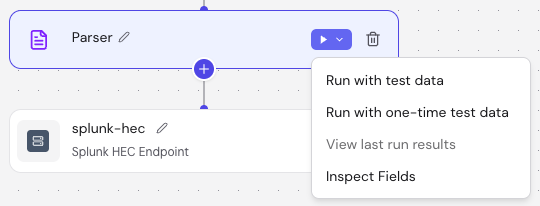
You can start an inspection on any node except a destination node. The run replays the inspected node and every node above it over the sample, so each of those nodes must work without calling an external system or keeping state between records. Two generally available nodes do not meet that: Throttle, which keeps state, and Data Enrichment that reads from a database or an HTTP endpoint. If either is the inspected node or sits above it, the inspection fails at start with a message naming that node. Data Enrichment with an uploaded CSV lookup table works.
The Inspect Fields entry and the canvas control are hidden when you have view-only access or the canvas is locked, for example while another user or Copilot is editing it.
After an inspection completes, the entry reads View last inspection and reopens its results. A failed or stopped run keeps the Inspect Fields entry, which reopens its state. To sample again, open the results and select Edit at the top right; see Start a New Sample.
Inspections are saved with the workflow. Everyone who can edit the workflow sees the same results and assignments.
Configure and Run a Sample
Choose a Data Asset
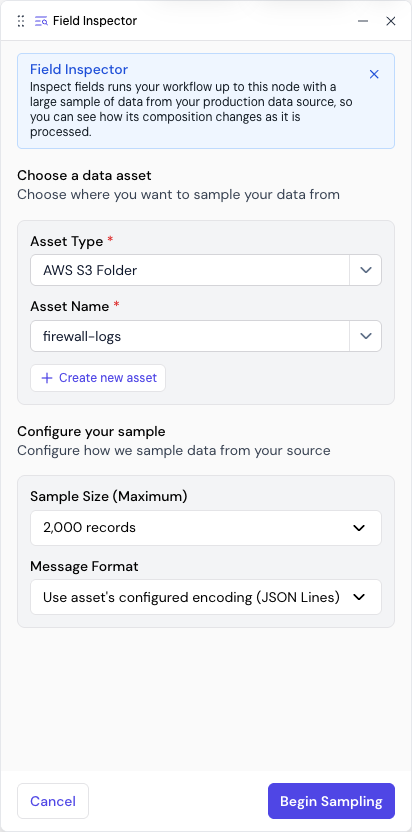
Under Choose a data asset, pick the Asset Type and the Asset Name of the data asset to sample from, or select Create new asset. For a node inspection, this asset only supplies the sample and does not change the workflow's source node.
In the example, choose AWS S3 Folder and firewall-logs. The next time you inspect the same node, the form opens with the asset and settings you used last.
Configure Your Sample
Under Configure your sample:
- Sample Size (Maximum): 10,000,000 records (the default), 50,000,000, 100,000,000, or Custom, which accepts 1 to 100,000,000 records. A folder read stops at 1,000,000 records whatever you set here; see the table below.
- Sampling timeout (minutes): shown only for streaming asset types, meaning queues and topics such as Kafka topics and AWS SQS queues. Collection stops at the sample size or the timeout, whichever comes first. The default is 15 minutes, and the allowed range is 1 to 1440. The timeout covers collection only; running the workflow and summarizing the fields can take longer.
The remaining settings depend on the asset type:
| Asset type | Settings |
|---|---|
| Apache Kafka Topic and AWS MSK Kafka Topic | Read from, Message Format (required), Consumer Group, and Additional Properties (Optional), which also accepts an uploaded .properties file. End (latest) reads the newest records already on the topic, about one sample size back from the end, rather than waiting for new ones. Beginning (earliest) reads from the oldest record. If the topic holds fewer records than the sample size, sampling reads them all and then waits for the timeout. Leave Consumer Group blank unless your broker restricts group names; sampling never commits offsets. |
| AWS SQS Queue | Message Format (required). Sampling does not remove messages from the queue. They are hidden for the queue's visibility timeout and then return. |
| AWS S3 Folder | Message Format (optional; defaults to the asset's own format, or override it with CSV, JSON Array, or JSON Lines). Parquet files cannot be sampled. A folder read stops at 1,000,000 records, 10,000 files, or 15 minutes, whichever comes first, and skips empty files and files over 64 MB. These limits are fixed and separate from the sampling timeout. |
The Message Format applies to this sample only. If it differs from the format your deployed workflow reads with, the fields you see and the filters you generate follow the sample's format, and the deployed workflow keeps its own.
Select Begin Sampling. For a streaming asset type, confirm the Begin Sampling? dialog with Continue, or check Don't show this message again to skip it from then on.
While the Sample Runs
The panel shows the run's progress through Queued, Collecting sample from data source, Running your workflow up to this node, and Summarizing fields.
- End Sample Early stops collecting and summarizes the records collected so far. It is available until collection ends. If nothing has been collected yet, the run ends as Run stopped instead.
- Cancel discards the run and the records it collected.
- You can close the panel while the sample runs. To return to it, select the same entry again. If the node already had a completed inspection, the entry reads View last inspection and shows the old results until the new sample completes.
When the run completes, the top of the panel shows the Source (the sampled data asset) and Records Sampled. A line under them says why collection stopped and how many records came out of the inspected node, for example Maximum sample size reached: 2,000 records. 2,000 records (483.42 kB) came out of this node. If a folder ran out of records, the line says sampling finished with all available records. If a read limit stopped it first, the line says the sample was capped. A streaming asset with fewer records than the sample size ends with the timeout message.
Records that could not be decoded with the Message Format are skipped and counted separately, for example 20,000 (20 invalid) records. Records Sampled counts the decoded records collected from the data asset. The shares in the results are counted over the records that came out of the inspected node, which can be fewer.
Read the Results
Fields
Choose a field lists the fields in the inspected node's output:
| Column | Meaning |
|---|---|
| Field | The field path. Nested fields use dot paths. A multi badge marks a field that is a list, or sits inside a list, in at least one record. |
| Presence | The share of the node's output records that contain the field |
| Distinct values | The number of different values. Above 10,000, the number is an estimate and carries a ~ prefix. |
Search for a field by name, or sort by any column. The list loads in pages; select Load more fields to see the rest. A parent object or array is listed too, with presence rows but no values.
A sample keeps up to 2,000 fields. Beyond that, the fields present in the fewest records are dropped, and a banner says the list is incomplete. A field missing from an incomplete list may still be in your data.
Field Values
Select a field to see its values in Field values:
| Column | Meaning |
|---|---|
| Values | The value, or one of the special rows below |
| Records or Bytes | The number of records with the value, or the total size of those records. Switch between them with Records and Byte above the table. |
| % of Total or % of Total Vol | The value's share of the records, or bytes, that contain the field. The two presence rows below use all of the node's output records instead. |
| Destination | Where records with this value go when you generate routing rules |
Bytes is the size of each whole record as it leaves the inspected node, not the size of the field. Use it to find the values that cost the most to send to a destination that bills by volume. In the example, select subtype and switch to Byte to see which subtypes make up most of the Splunk volume.
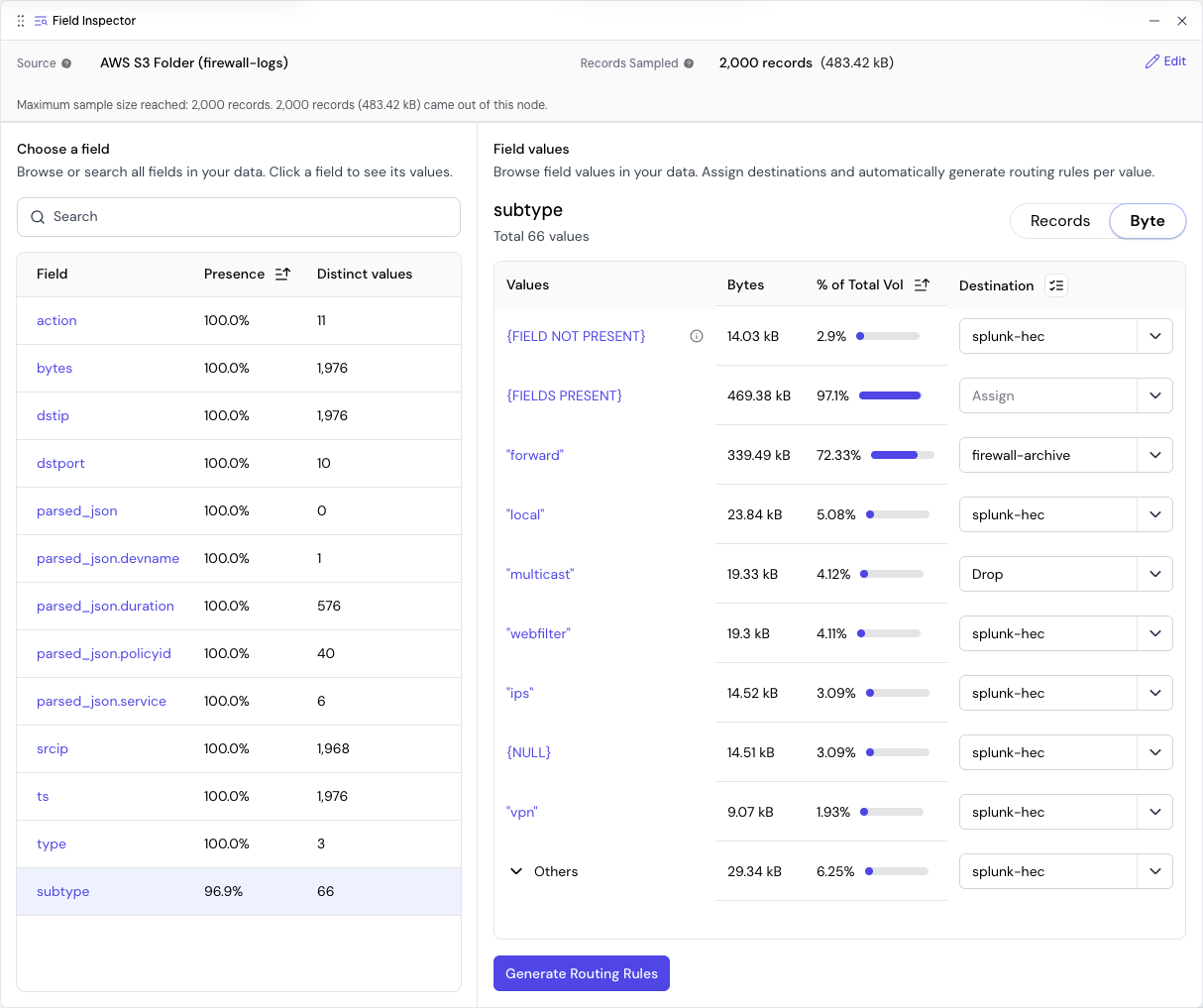
The rows are chosen when the sample is summarized and are the same in both views. A value gets its own row when it holds at least 1% of the field's records or 1% of its bytes, up to 50 rows. The 5 largest values get a row even below 1%. The rest are grouped under Others. A field without an Others row had every value on its own row.
Special Rows
A special row appears only when at least one record falls into it.
| Row | What it covers |
|---|---|
{FIELDS PRESENT} | Every record that contains the field, whatever its value, including null. Its share is counted over all of the node's output records. |
{FIELD NOT PRESENT} | Every record without the field. Its share is counted over all of the node's output records. |
{NULL} | Records in which the field exists but has no value |
| Others | Values without their own row. Expand the row to see them and assign them one by one. When you route Others, its branch also catches values that first appear after sampling. If you leave Others unassigned, its values and any new value get no branch. |
| Remaining values | A row inside Others that appears when a field had more than 10,000 values. The inspector keeps 10,000 and counts the rest only as one total of records and bytes. You cannot see or assign them individually. They go wherever Others goes. |
| Sample Values | For a field in which no value repeats, such as an ID or a timestamp: {FIELDS PRESENT} expands to show up to 100 example values. They cannot be assigned. |
Records Behind a Value
Select a value to open the sampled records that carry it, in a JSON or table view, 20 at a time. Select Load 20 more records to page further. For a rare value, the inspector may need to scan several pages before the first match appears; select Keep searching to continue.
Assign Destinations
What You Must Assign
Generation removes the existing nodes below the inspected node and adds a branch only for the rows you assign. A value you don't assign, either directly or through Others, gets no branch. After generation, records with that value match no filter and are sent nowhere, not even to the data asset of a destination node that generation removed. Nothing in the confirmation dialog or the Routing Rules Summary points this out.
There is no single catch-all row. To keep sending the rest of a field's records to their original destination, assign all of these rows on that field to it:
- Each value row you are not routing elsewhere
- Others
{NULL}{FIELD NOT PRESENT}
Together these rows cover every record of the field exactly once. New values are caught by Others. Each row becomes its own filter and destination node, so this can add many destination nodes for one data asset.
A special row exists only if a sampled record fell into it. If the sample had no null values or no records without the field, there is no {NULL} or {FIELD NOT PRESENT} row to assign, and production records like that get no branch.
Don't use {FIELDS PRESENT} for this on a field where value rows, Others, or {NULL} are assigned. It matches every record that has the field, so those records would be written twice.
Three kinds of field work differently:
- A field without an Others row: nothing catches a value that first appears in production. Records with such a value get no branch.
- A field marked multi: its values are listed but cannot be assigned, because a filter would compare the whole list against one value. Only
{FIELDS PRESENT}and{FIELD NOT PRESENT}can be assigned, and together they cover every record. - A field with only Sample Values, where no value repeats: assign
{FIELDS PRESENT}and{FIELD NOT PRESENT}. Together they cover every record. Don't add{NULL}; it would write null records twice.
Assign a Row
In the Destination column, open Assign on a row and choose:
- One or more data assets under Existing data assets. A value assigned to several data assets is written to each of them.
- Drop (Discard values) to discard records with this value.
- Create New Asset to create a data asset without leaving the inspector.
- Deselect All to clear the row's data assets. It leaves a Drop in place. To clear a Drop, assign any data asset and then select Deselect All.
To assign several rows at once, select the checklist icon in the Destination header (Select rows for batch assignment), check the rows, and open Assign with the row count, for example Assign 3. The menu lists the data assets and Drop, and applies your choice to every checked row.
Assigning Others applies the destination to every value in it and clears any destination you had set on a value inside it. To give one value inside it a different destination, expand Others and assign that value directly. Others then reads Mixed: the value you assigned gets its own branch, and the Others branch excludes it while still catching the rest, including new values. If Others itself has no destination, the rest of its values and new values get no branch. In batch mode, a checked Others row locks its values until you have loaded them all with Load more grouped values.
Assignments are saved as you make them.
In the example, assign the subtype rows like this:
| Row | Destination |
|---|---|
forward | firewall-archive |
multicast | Drop (Discard values) |
Every other value row, Others, {NULL}, and {FIELD NOT PRESENT} | splunk-hec, the asset the workflow already writes to |
The Splunk rows are what keep the rest of the feed flowing after generation removes the existing Splunk destination node.
Records That Match More Than One Branch
Every assigned row becomes its own branch from the inspected node. Branches on the same field do not overlap, except {FIELDS PRESENT}. Branches on different fields do not exclude each other: a record that matches assignments on two fields, for example type = traffic and dstport = 3389, passes both filters and is written to each destination. When both branches write to the same data asset, that asset receives the record twice.
Branch Limit
One generation can create up to 200 branches. Each assigned row counts as one branch, including rows assigned to Drop (Discard values) and the special rows. A value assigned to several data assets still counts once. Above the limit, Generate Routing Rules in the Routing Rules Summary is unavailable, and hovering over it shows how many branches your assignments would create.
Review in the Routing Rules Summary
Select Generate Routing Rules to open the Routing Rules Summary. It lists each field you assigned values on and the destination of each value, and you can change any value's destination there. A collapsed field shows how many values and destinations it has. The summary lists only assigned values, so check the Destination column in the value list for the ones you left unassigned.
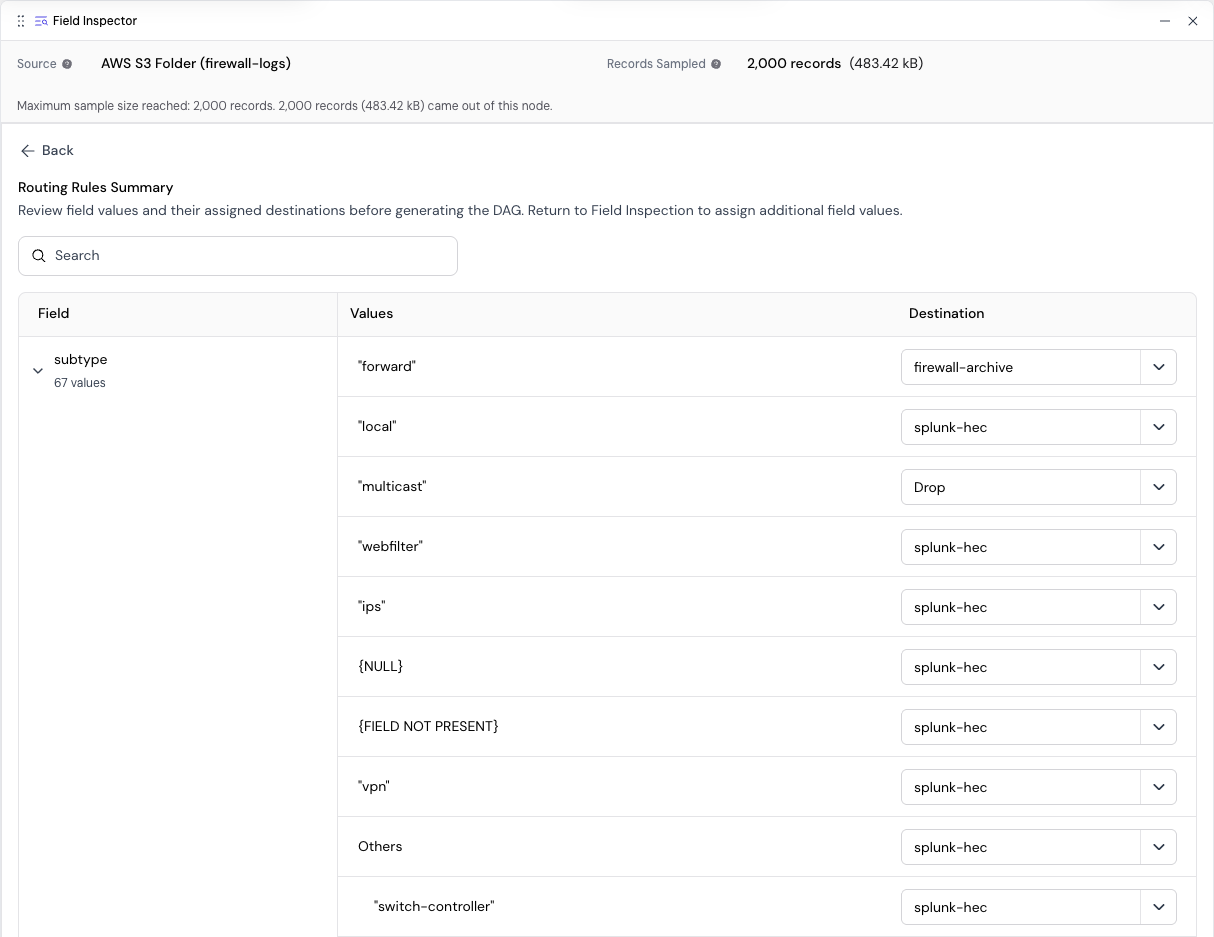
Edits in the summary are saved when you select Generate Routing Rules. If you select Back with unsaved edits, a Do you want to persist these changes? dialog asks whether to keep them (Continue) or Discard them.
Generate Routing Rules
Selecting Generate Routing Rules in the Routing Rules Summary rewrites the canvas below the inspected node. Once it completes, the draft is saved and the canvas has no undo for it. Before you generate on a workflow you want to keep, publish a version so the current canvas is kept in Version history.
What Generation Adds
For each assigned row, generation adds:
- A Filter node attached to the inspected node, named after the value, for example Filter forward, Filter Others, or
Filter {NULL}. It passes only records with that value. The Others filter passes records whose value has no row of its own, which is how it catches new values. The name does not include the field, so the same value on two fields produces two filters with the same name. - A new destination node under that filter for each data asset the row is assigned to. The location and credentials come from the data asset; the node's own settings, such as batch size, are the defaults. Settings you changed on a destination node that generation removes are not copied, so check the generated ones before you deploy.
- For a row assigned to Drop (Discard values), a filter with nothing below it, so its records go nowhere.
All generated nodes are ordinary nodes that you can edit.
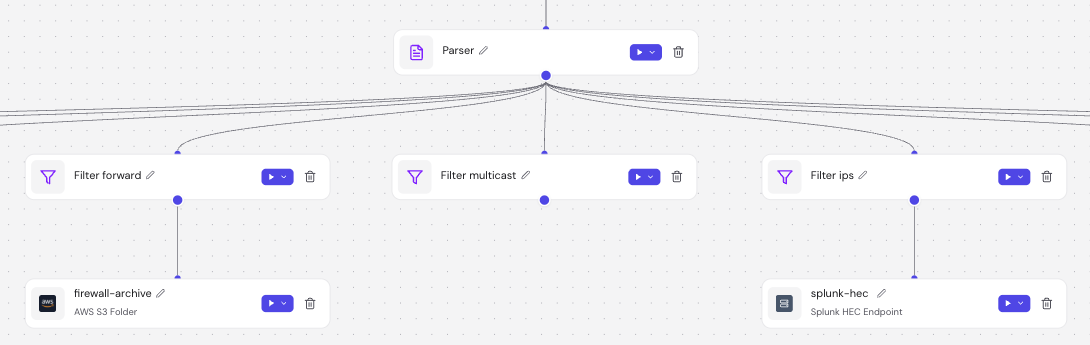
The image shows three of the example's branches: forward to firewall-archive, multicast dropped, and ips to a new splunk-hec destination node. The other Splunk branches continue to either side. On success the panel closes and the canvas zooms to the new branches.
What Generation Removes
Generation removes every node below the inspected node. The one exception is a node that another path through the workflow also reaches without passing the inspected node, for example a destination node that a second branch also feeds. Such a node stays, keeps its connection to the inspected node, and still receives every record the inspected node emits, unfiltered. When nodes would be removed, Fleak asks first:
Replace downstream nodes? This action will replace your downstream nodes with nodes generated by the fields inspector. This is a permanent action.
The dialog lists the nodes it will remove and the nodes that stay. Select Continue to generate, or Cancel to leave the canvas unchanged.
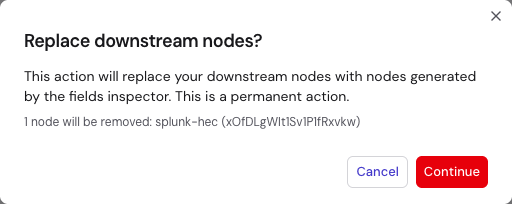
In the example, generating from the parser removes the Splunk HEC destination node below it. The rows you assigned to splunk-hec recreate it as new destination nodes, one under each of their filters. Records whose subtype you did not assign would reach neither; see What You Must Assign.
Generating from a Data Source Inspection
When you generate from Inspect a data source, the inspected data asset replaces the configuration of the workflow's source node, or becomes a new source node when the workflow has none. Generation then removes every node below the source node, including parsers, with the same exception for nodes another path also reaches. The generated filters run on raw records. To keep a parser, inspect the parser node with Inspect Fields instead.
The Message Format you sampled with becomes the source node's format. If the source node already reads the inspected data asset, its other settings are kept, including Read from on a Kafka source. Otherwise the source node takes the asset's defaults, and a Kafka source reads from End (latest).
When the workflow already has a source node and the asset or format would change, the Replace downstream nodes? dialog describes the change, for example "The source format will change to JSON_OBJECT to match this inspection.", and appears even when no nodes would be removed. When the workflow has no source node, the new source node is added without a dialog unless nodes would be removed.
Generation stops with "This workflow has multiple sources. A workflow must have only one source." when the workflow has more than one source node.
Cancelling, Re-generating, and Failures
While the Generating Workflow overlay is shown, Cancel restores the previous canvas. Generation also clears the results of your last test run. A running deployment keeps running the version it was deployed from until you re-deploy.
Generating again from the same inspection replaces the nodes the previous generation created, together with any changes you made below the inspected node since then.
If generation stops before it changes the canvas, for example because an assigned data asset was deleted, the panel shows the reason with Retry. If it fails while changing the canvas, the previous canvas is restored and a Routing rules couldn’t be generated. message appears. The exception is a save the inspector could not confirm; then the new canvas stays and the panel asks you to retry the save. In every case, your assignments are kept.
Reopen, Re-run, or Re-sample
Reopen Results
Once an inspection has completed, View last inspection reopens its results:
| Where | What it reopens |
|---|---|
| The node's run menu | That node's last completed inspection |
| The canvas control | The last data source inspection |
| The Run menu in the top bar | The most recent completed inspection in the workflow |
Re-run After Upstream Changes
When you change the settings or connections of the inspected node or any node above it, the inspector shows Inspection needs to be refreshed. Changes below the inspected node, renames, and moves do not count, and a data source inspection is never marked stale. Select Re-run inspection to run the updated workflow over the records already sampled, without collecting a new sample. A changed source node also marks the inspection stale, but a re-run still uses the old records; to sample from the new source, start a new sample.
Assignments are kept for values that still appear after the re-run. A value that no longer appears is left out of generation without a warning, so review your assignments before you generate again. Its assignment is kept and applies again if the value reappears after a later re-run.
Generation does not require a re-run. A stale inspection generates filters for the field names and values from its last run, so re-run it first when you have renamed or restructured fields above the inspected node.
Start a New Sample
To collect a new sample, select Edit at the top right of the panel. A Discard Results dialog explains that your results will be discarded and your data re-sampled. Check Don't show this message again to skip it next time. The new sample starts with no assignments. On a failed or stopped run, the Start a new sample button opens the same sample settings.
Troubleshooting
| State | What happened | What to do |
|---|---|---|
| No records were sampled | The data asset returned no records. | Check that the data asset has data, then select Start a new sample. |
| No valid records were sampled | None of the sampled records could be decoded with the Message Format. | Select Edit at the top right of the panel, choose a different Message Format, and sample again. |
| Sampling failed | The sample could not be collected. The panel shows the reason. | Fix the cause, then select Start a new sample. |
| Running your workflow up to this node failed, or a node name followed by stopped the run | A node failed on the sampled records. The state names it. | Fix the node, then select Re-run inspection. The re-run uses the records already sampled. |
| The inspection run failed | The run failed for another reason. | Select Re-run inspection or Start a new sample. |
| Run stopped | You selected End Sample Early before any record was collected, or the run was stopped later while running the workflow or summarizing. The state says how many records were collected. | If records were collected, select Re-run inspection to summarize them. If none were, select Start a new sample. |
| No records came out of this node | The inspected node, or a node above it, filtered out every sampled record. | Inspect an earlier node, or check the conditions of the filters above it. |
| Unavailable destination on a row, or generation stops because a destination is unavailable | A data asset you assigned has been deleted. | Choose another destination for that row, or clear it with Deselect All. |
When a sample fails because of its message format, the panel names the setting to change, for example "This data asset has no message format saved on it. Pick a Message Format in the sample settings and start a new sample."
Related Pages
- Workflow Lifecycle — test runs with sample data, publishing a version, and deploying
- Data Assets — the sources the inspector samples from and the destinations it routes to
- Filter — the node that generation creates for each assigned value